How to turn off Windows
Messenger Service
This page does not address, nor is it intended to
address, problems associated with services involved with Instant
Messaging.
It has come to our
attention that some third party has been directing users to this page via
pop-ups. We do not condone this practice and are not the source of any pop-up
that provides a link to this page. We only provide these
directions as a public service and have no affiliation with any entity outside
the University of Virginia which points to this page, including ISP's, vendors
and other entities.
What Windows Messenger Service Allows to Happen on Your Computer
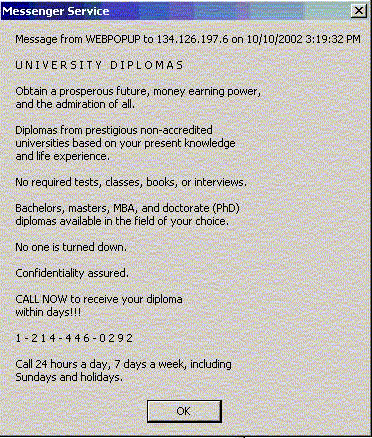
Should a pop up
box appear on your screen with the words "Messenger Service" in the title bar
such as the one below, chances are that you have Windows Messenger Services
enabled.
|
|
In their
initial state, Microsoft Windows operating systems (98, ME, XP, 2000,
NT) allow anyone on the internet to pop up Windows on your screen. There
is no need for them to know anything about your computer and your
computer does not care who does it. |
| |
Even less
savory individuals may pop up messages on your screen that try to fool
you into taking actions that may not be in your best
interest. |
| |
The
important thing to remember is that anyone, anywhere in the world can
pop up one of these messages on your computer. At this time it looks as
though all these messages will have "Messenger Service" in the Window
title. It would be wise to verify with support staff any such message
that appears on your computer that instructs you to to take actions that
may divulge sensitive information, change your password, leads you to a
web site, or take other, unusual actions on your computer.
Also know that spam senders are using the Windows Message Service as
another way to distribute their advertisements.
Keep in mind that faculty and staff are advised to check with their
computer support staff before disabling any service so that you do not
inadvertently disable a service that your department uses.
|
| |
| |
Disabling the
Messenger Service
To remove
the ability for anyone in the world to pop up messages on your computer,
you can disable the Messenger service. Its easy to reverse at a later
time if you wish to do so.
|
Windows
2000
- Click Start-> Settings-> Control
Panel-> Administrative Tools->Services
- Scroll down and highlight "Messenger"
- Right-click the highlighted line and choose
Properties.
- Click the STOP button.
- Select Disable or Manual in the Startup Type scroll
bar
- Click OK
|
| |
Windows XP
Home
- Click Start->Settings ->Control Panel
- Click Performance and Maintenance
- Click Administrative Tools
- Double click Services
- Scroll down and highlight "Messenger"
- Right-click the highlighted line and choose
Properties.
- Click the STOP button.
- Select Disable or Manual in the Startup Type scroll
bar
- Click OK
|
| |
Windows XP
Professional
- Click Start->Settings ->Control Panel
- Click Administrative Tools
- Click Services
- Double click Services Scroll
- down and highlight "Messenger"
- Right-click the highlighted line and choose
Properties.
- Click the STOP button.
- Select Disable or Manual in the Startup Type scroll
bar
- Click OK
|
| |
Windows
NT
- Click Start ->Control Panel
- Double Click Administrative Tools
- Select Services-> Double-click on Messenger
- In
the Messenger Properties window, select Stop,
- Then choose Disable as the Startup Type
- Click OK
|
Windows 98
& MEWindows
Messenger Service cannot be
disabled |
| |
| |